← Back to Syllabus Unit 1 · ICT Fundamentals
0% 0% read

f0undr Team · f0 book SeriesPractical f e books Edition

Computing & Technology.

Welcome to the official f0undr Book (also known as f0 book / f e books) created by Huzaifa and the f0undr Team. An original hands-on computing curriculum with clear everyday explanations, interactive visual logic, coding labs, and practical skills you can actually use.

06 Complete units with original diagrams, real-world case studies, and autosaving student lab workbooks.

CPU PROCESSING 01001001 01000011 01010100
Connecting computational foundations, human reasoning, and practical creative skills.
A Note from the Author

Why I wrote this book

Too many computing textbooks feel like they were written for machines rather than curious minds. They throw complicated definitions at you without explaining why things work the way they do or how it connects to the real apps, games, and tools we use every single day.

I put together this 6-unit curriculum to bridge that gap. Every concept here—from how a CPU processes electrical charges to designing a game in Scratch, understanding cybersecurity, or launching your first digital venture—is explained from first principles using everyday analogies and interactive practice exercises. Take your time, test your knowledge with the built-in quizzes, and enjoy the journey!

— Huzaifa, Creator & Author of f0undr Book

f0undr Book · Curriculum Map

All Course Units & Learning Modules

Explore all 6 structured modules covering computing foundations, practical creative workflows, and digital entrepreneurship.

Unit No. Unit Title & Core Topics Action
Unit 1 ICT Fundamentals — Data vs Information, IPO Cycle, Hardware, CPU & Memory, Software & Emerging Tech Read Unit 1
Unit 2 Digital Skills — Word Processing, Ribbon Tabs, Keyboard Shortcuts, PowerPoint, Slide Master, Email & Netiquette Read Unit 2
Unit 3 Algorithmic Thinking & Problem Solving — Computational Thinking, 5-Step Process, Flowchart Symbols, Decision Logic, Trace Tables Read Unit 3
Unit 4 Programming — Visual Block-Based Coding (Scratch 3.0), Sequences, Loops, Decisions, Variables, Game Project Read Unit 4
Unit 5 Digital Citizenship — Digital Footprints, Cyber Hygiene, 2FA, Malware Taxonomy, Cyber Laws (PECA), Anti-Cyberbullying, CRAAP Test Read Unit 5
Unit 6 Entrepreneurship in Digital Age — Digital Venture Mindset, 5-Stage Design Thinking, Business Models, Lean Startup Canvas, Pitching Read Unit 6
Ref. A Master Glossary — Over 50 key computer science terms and definitions View Glossary
Ref. B Abbreviations & Acronyms Directory — Essential computing terms decoded View Abbreviations
← Back to Course Syllabus
Unit 01 · Foundations

ICT Fundamentals

Whenever you tap your smartphone screen, search for a video, or send a quick message to a friend across the globe, you are putting Information and Communication Technology (ICT) to work. Rather than memorizing dry academic definitions, I want you to see ICT as a living ecosystem: the devices, networks, and logical tools we use to solve real human problems and turn messy data into valuable knowledge.

1. What is ICT? (Breaking it down)

I find it easiest to understand ICT by looking at its three core pillars:

  • Information: Meaningful knowledge and structured facts that you can actually use to make a smart decision.
  • Communication: The highways and pathways—like Wi-Fi, fiber cables, and satellites—that carry our digital voices, photos, and files anywhere in milliseconds.
  • Technology: The tangible hardware (microchips, displays, laptops) and clever software programs that do the actual thinking, calculating, and heavy lifting.

2. Data vs. Information: The Golden Rule

Beginners often use the words data and information interchangeably, but in computer science, they are two completely different stages of a process:

  • Data: Unprocessed, raw ingredients with no built-in explanation. If someone walks up to you and says "98, 86, 92" or "Ahmed, pass", you have no idea what that means yet. That is raw data.
  • Information: Data that has been cleaned, calculated, and arranged with context so it tells a clear story. For instance: "Ahmed earned an overall average of 92%, achieving top ranking in his Grade 7 Mathematics exam."

Huzaifa's Practical Rule

Whenever you are trying to tell whether something is Data or Information, ask yourself: "Can I take action or make a decision right now just by reading this?" If the answer is no, it's still raw Data. Once it gives you the context needed to make a clear decision, it has become Information!

My Favorite Kitchen Analogy: Think of raw eggs, flour, and cocoa powder sitting on a counter as data. Mixing the batter and baking it in an oven is processing. The warm, iced birthday cake you serve to your friends is information!

1. INPUT Entering Data Keyboard · Mouse Microphone · Scanner Touchscreen · Sensor 2. PROCESSING CPU (The Brain) Arithmetic (ALU) Control Unit (CU) Logic & Decisions 3. OUTPUT Presenting Results Monitor Screen Speakers · Headphones Printers · Projectors 4. STORAGE (Persistent) SSD · Hard Disk · Flash Drive · Cloud THE IPO CYCLE Every digital device follows this core operational flow.
FIG. 1.1 The Input-Process-Output (IPO) Cycle with persistent secondary storage.

3. Hardware Architecture & System Components

Computer hardware comprises all tangible, physical parts of a computing system. Inside the system unit, components interact through high-speed electronic buses:
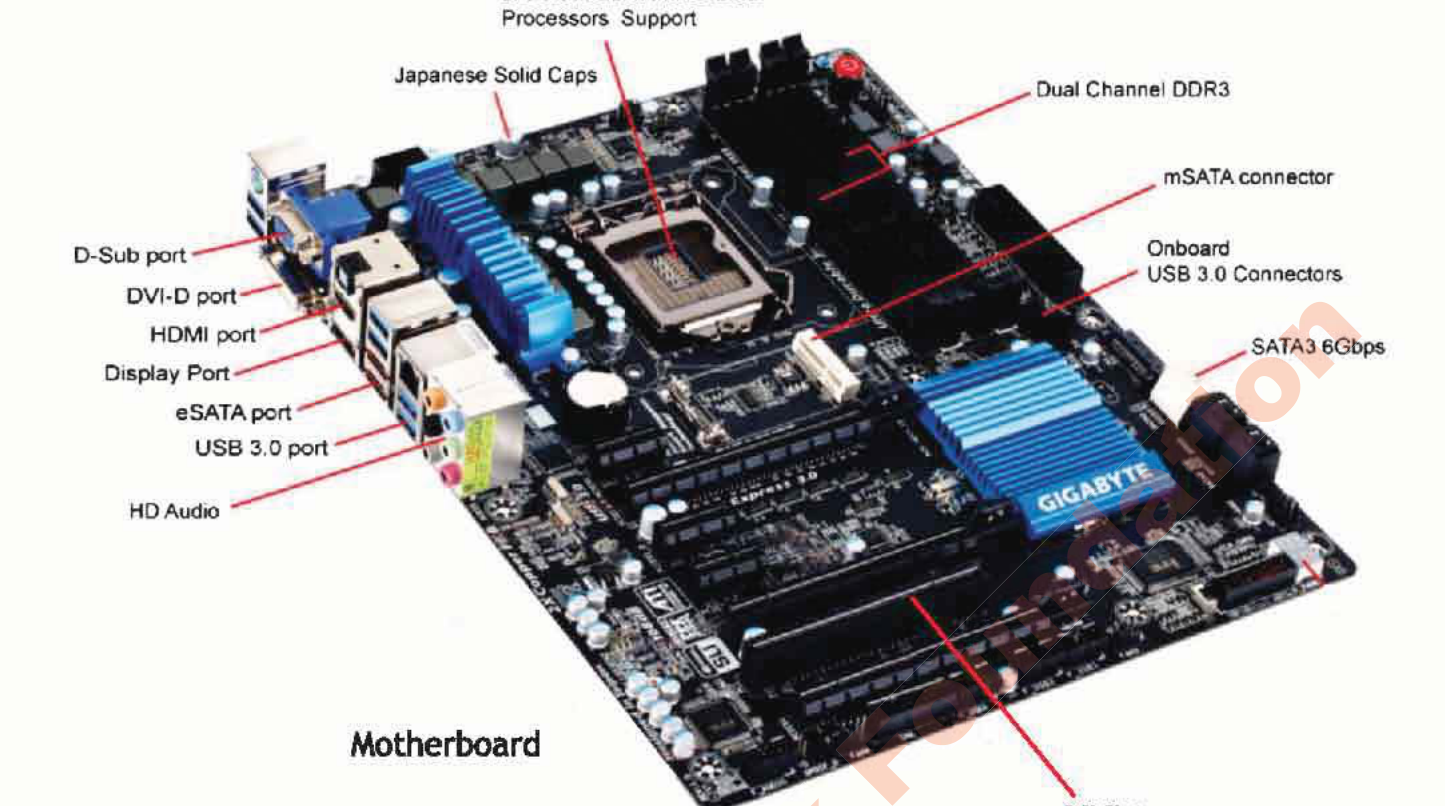
Computer Motherboard Architecture
The Motherboard: The main circuit board connecting the processor, memory, storage, and expansion cards.
  • Central Processing Unit (CPU): Known as the "brain" of the computer. The CPU contains two core subunits:
    • Arithmetic Logic Unit (ALU): Performs mathematical arithmetic (+, -, *, /) and logical comparisons (<, >, =, AND, OR).
    • Control Unit (CU): Directs the flow of instructions and data like a traffic controller, coordinating operations between ALU, memory, and peripherals.
CPU Block Diagram showing ALU and Control Unit
CPU Internal Architecture: Control Unit (CU), Arithmetic Logic Unit (ALU), and high-speed internal registers.

4. Memory vs. Storage

Computers utilize a memory hierarchy to balance speed, cost, and volatility:
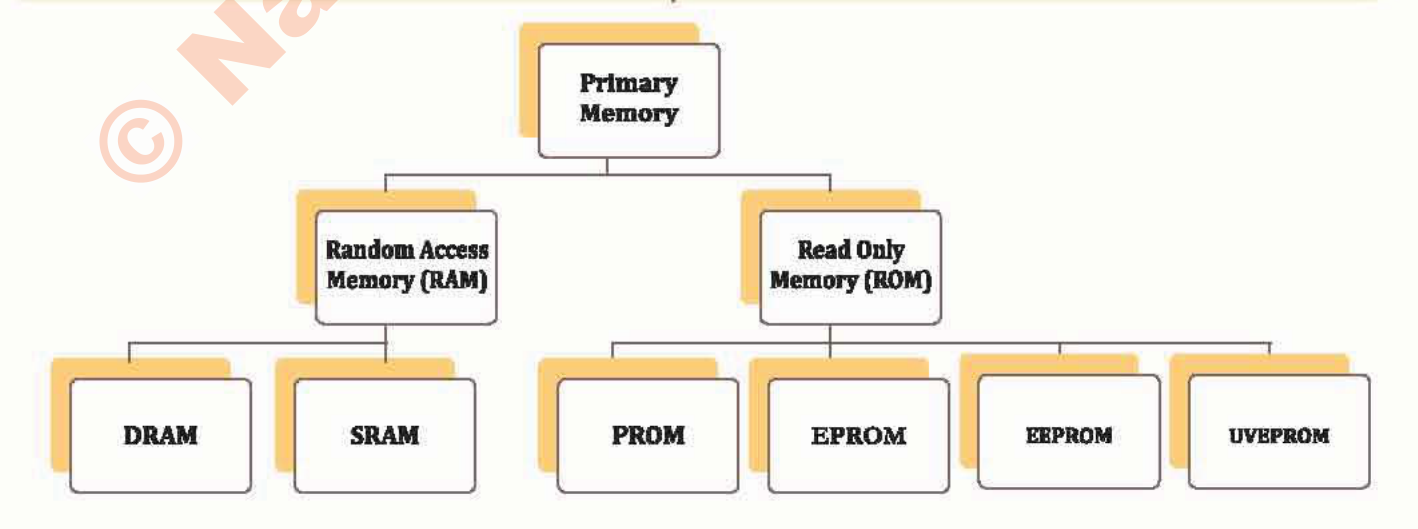
Computer Memory Classification Tree
Memory Hierarchy: Primary Memory (RAM, ROM, Cache) vs Secondary Storage (SSD, HDD, Optical, Cloud).
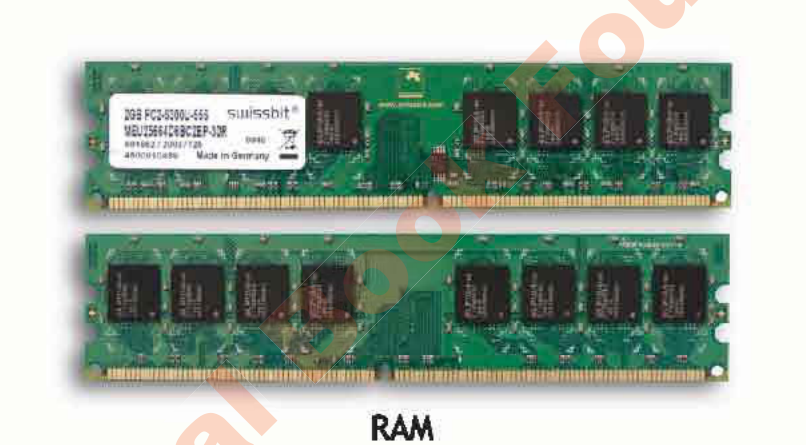
RAM chip module
RAM: Volatile working memory. Data disappears when power turns off.
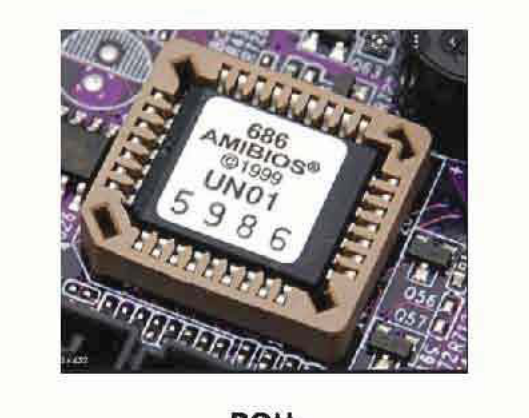
ROM BIOS chip
ROM: Non-volatile memory holding permanent boot instructions (BIOS/firmware).

Huzaifa's Memory Mental Model: Desk vs. Bookshelf

Students frequently confuse RAM with Storage (SSD/Hard Drive). Think of RAM as your physical study desk: whatever books and notebooks you have open right now sit on the desk so your hands can reach them in a split second. But when you turn off the room lights to go to sleep, the desk is wiped clean (volatile memory). Your SSD or hard drive is the heavy bookshelf across the room: it holds your whole library safely and permanently, even when the power is completely shut down.

5. The Family Tree of Computers

Not every computer looks like a desktop tower. Depending on what job needs doing, computing power spans four major tiers:

  • Supercomputers: Giant rooms of linked processors tackling massive global questions—simulating tomorrow's weather patterns, predicting earthquakes, or modeling complex protein molecules.
  • Mainframes: The dependable workhorses behind the scenes. If you swipe a bank debit card or book an airline ticket, a mainframe is processing that transaction securely among millions of others in that exact second.
  • Minicomputers (Midrange): Multi-user computers commonly deployed across university campuses and factories to coordinate local operations.
  • Microcomputers (Personal Computers): The machines we know and love: laptops, desktop workstations, tablets, and the smartphone sitting in your pocket right now.

6. System Software vs. Application Software

Without software, your computer is just an expensive collection of silicon, metal, and glass. Software gives it life:

  • System Software: The unseen manager working in the background. The most critical piece is your Operating System (OS) (such as Windows, Android, macOS, or Linux). It talks directly to your hardware, handles memory, and keeps things running smoothly.
  • Application Software: The specific tools and apps you actually interact with to get work done or have fun (like typing in Microsoft Word, browsing with Google Chrome, editing pictures in Photoshop, or playing your favorite game).

Unit 01 · Interactive Assessment

ICT Fundamentals Quiz — Check Your Knowledge

Test your understanding with instant feedback and explanations.

Score: 0 / 5 (0%)

01 What is the primary distinction between data and information?

02 Which internal subunit of the CPU carries out mathematical arithmetic and logical comparisons?

03 Why is Random Access Memory (RAM) categorized as volatile storage?

04 Which classification of computers is utilized for weather forecasting, climate modeling, and space simulations?

05 What software category does the Operating System (e.g. Windows, Android) belong to?

Interactive Student Lab Workbook · Unit 01

Unit 1 Reflection & Lab Notes

Answer these review questions. Your responses are automatically saved in your browser.

← Back to Course Syllabus
Unit 02 · Productivity

Digital Skills

Having a computer is great, but knowing how to use it with speed and style is what truly sets you apart. In this unit, I want to teach you the practical digital skills that will help you write stellar reports, design captivating presentations, and compose emails like a seasoned professional.

1. Choosing the Right Word Processor

A Word Processor is your digital notepad, typewriter, and publishing press all in one. Here are the tools I recommend depending on your situation:

  • Microsoft Word: The gold standard for offline, full-featured reports, academic papers, and detailed formatting control.
  • Google Docs: My personal favorite for team projects, group assignments, and anywhere you need instant cloud autosave and real-time collaboration.
  • Apple Pages / iWork: Clean, minimalist, and built right into Macs and iPads with gorgeous typography templates.
  • LibreOffice Writer: A fantastic, 100% free and open-source alternative that doesn't cost a single rupee.

Huzaifa's Formatting Pro-Tip: Clean Breaks

Stop hitting the Enter key five times to push text to the next page! Instead, press Ctrl + Enter to insert a clean Page Break. It keeps your headings locked at the top of the new page, no matter how much you edit or delete earlier paragraphs.

2. Navigating the Microsoft Word Ribbon

The Ribbon is the command bar spanning the top of Microsoft Word. Think of it as your toolbox with organized drawers:

  • Home Tab: The most frequently accessed tab, featuring:
    • Clipboard: Cut (Ctrl+X), Copy (Ctrl+C), Paste (Ctrl+V), and Format Painter.
    • Font: Font family, font size, bold (Ctrl+B), italic (Ctrl+I), underline (Ctrl+U), strikethrough, subscript, superscript, text highlight, and font color.
    • Paragraph: Bulleted/numbered lists, indentation, line & paragraph spacing, alignment (Left, Center, Right, Justify), and borders.
    • Styles: Pre-designed typography hierarchies (Title, Heading 1, Heading 2, Normal) that automatically generate structured Tables of Contents.
  • Insert Tab: Allows embedding non-text elements: Tables, Pictures, Shapes, Icons, SmartArt diagrams, Charts, Header & Footer, Page Numbers, Text Boxes, WordArt, Symbols, and Mathematical Equations.
  • Page Layout & Design: Margins (Normal, Narrow, Wide), Page Orientation (Portrait vs. Landscape), Paper Size (A4, Letter, Legal), Multi-column text columns, Page Breaks, and Page Borders.
  • Review Tab: Quality assurance tools including Spelling & Grammar checking (F7), Thesaurus, Word Count statistics, and Track Changes for editorial collaboration.

3. Document Printing & Output Configuration

When preparing physical prints or PDF exports in Word (Ctrl+P):

  • Print All Pages: Prints the entire document from start to finish.
  • Print Selection: Prints only the specific paragraph or table currently highlighted.
  • Print Current Page: Prints only the page currently visible under the cursor.
  • Custom Print Range: Prints specific pages or ranges (e.g., 1-3, 5, 8-10).
  • Collation: Prints multi-page copies in sequence (1,2,3... 1,2,3) rather than grouped by page (1,1... 2,2...).

4. Essential Keyboard Shortcuts Reference

Mastering shortcut keys significantly accelerates writing and editing workflows:

Shortcut Key Action & Description
Ctrl + NCreate a new blank document window
Ctrl + OOpen an existing saved document
Ctrl + SSave the active document to disk or cloud storage
Ctrl + POpen the Print dialogue window and print settings
Ctrl + ZUndo the last editing or formatting action
Ctrl + YRedo the previously undone action
Ctrl + FOpen the Find navigation pane to search for text
Ctrl + HOpen Find & Replace dialogue
Ctrl + ASelect all content across the entire document
Ctrl + B / I / UApply Bold, Italic, or Underline to selected text
Ctrl + L / E / R / JAlign text: Left, Center, Right, or Justified
F7Initiate comprehensive Spelling and Grammar check

5. Multimedia Presentation Skills

A Multimedia Presentation integrates text, high-resolution imagery, audio voiceovers, video clips, and motion animations to convey ideas dynamically to an audience. Common tools include Microsoft PowerPoint, Google Slides, Canva, and Prezi.

The Power of the Slide Master

The Slide Master is the master template controlling default typography, logos, background themes, and placeholder positioning for all slides in a deck. Editing the Slide Master once ensures automatic visual consistency across every single slide in the presentation.

Slide Transitions vs. Object Animations

  • Slide Transition: The visual motion effect that occurs when advancing from one slide to the next (e.g., Fade, Push, Wipe).
  • Object Animation: The motion applied to individual elements within a slide (e.g., bullets appearing on click, diagrams zooming in).

Huzaifa's Presentation Rule: One Core Idea Per Slide

The biggest presentation mistake is treating a slide like a crowded book page! If you paste 10 lines of text, your audience will read the screen instead of listening to you speak. Follow the One Idea Rule: give each slide one clear headline, one striking diagram or photo, and at most three brief bullet points.

6. Electronic Mail (Email) Systems & Netiquette

Electronic mail (Email) is a rapid, asynchronous method of exchanging structured digital messages and file attachments across the Internet.

Anatomy of an Email Address

username@domain.name
// Example: student.contact@school.edu.pk
// 1. Username: unique account name chosen by the user
// 2. '@' Symbol: universal separator ("at")
// 3. Domain: organization and mail server host
// Rule: Email addresses are not case-sensitive and cannot contain spaces!

Message Composition Fields

  • To: The primary recipients intended to read and act upon the message.
  • Cc (Carbon Copy): Secondary recipients kept informed for visibility. All recipients can see who is in the Cc list.
  • Bcc (Blind Carbon Copy): Hidden recipients. Neither 'To' nor 'Cc' recipients can see addresses listed in Bcc, protecting recipient privacy.
  • Subject Line: A concise, specific summary of the email's purpose (e.g., "Grade 7 Science Project Proposal — Ahmed Khan").
  • Attachments: Digital files (PDFs, images, spreadsheets) attached directly to the message.

Huzaifa's Email Rule of Thumb: The Bcc Privacy Shield

Whenever you are emailing a group of people who do not know each other (such as a school club or event invitees), always put their addresses in Bcc, never in To or Cc. This prevents everyone's personal email from being exposed to dozens of strangers, protecting their digital privacy.

Rules of Professional Netiquette

  1. Always include a courteous greeting (e.g., "Dear Teacher / Hello Ms. Sarah") and polite sign-off.
  2. Never write in ALL CAPS: In digital communication, uppercase text is perceived as aggressive shouting.
  3. Carefully review spelling, grammar, and attached files before clicking Send.
  4. Respect confidentiality: never forward private correspondence without sender permission.

Unit 02 · Interactive Assessment

Digital Skills Quiz — Check Your Knowledge

Test your understanding with instant feedback and explanations.

Score: 0 / 5 (0%)

01 In Microsoft Word, which Ribbon tab houses Page Margins, Orientation, and Paper Size?

02 What is the universal keyboard shortcut to Undo the most recent action in Word?

03 What is the main benefit of utilizing PowerPoint's Slide Master?

04 Which email header field conceals recipient email addresses from other recipients?

05 Why is typing entire emails in ALL CAPS strongly discouraged by digital Netiquette?

Interactive Student Lab Workbook · Unit 02

Unit 2 Review & Practical Notes

Complete these questions to test your word processing, presentation, and email skills.

← Back to Course Syllabus
Unit 03 · Computational Logic

Algorithmic Thinking & Problem Solving

Computers are extraordinarily fast, but they don't possess an ounce of common sense. If you tell a computer to "make a breakfast sandwich", it won't know where the bread is or how to open the cupboard unless you give it exact, unskippable instructions. That is why algorithmic thinking is the single most valuable superpower in technology: it teaches you how to teach a machine.

1. What is Computational Thinking? (The 4 Superpowers)

Computational thinking isn't about thinking like a robot; it is about training your human mind to solve complex problems systematically through four pillars:

  • Decomposition: Breaking a massive, intimidating problem into bite-sized pieces. (e.g., Instead of saying "Build an entire social app", you break it into user login, photo upload, comment feed, and settings).
  • Pattern Recognition: Spotting shared traits and repeating rhythms. (e.g., Noticing that searching for a student's roll number uses the exact same search logic as looking up a phone number in your contacts).
  • Abstraction: Ignoring unnecessary noise to focus purely on what matters. (e.g., A metro train map shows station stops and connections clearly, while completely ignoring trees, roads, and building heights).
  • Algorithm Design: Writing an unambiguous, step-by-step recipe that delivers the correct result every single time.

Huzaifa's Algorithm Mental Test: The Sandwich Challenge

Whenever you write an algorithm, imagine giving your steps to an alien who takes every word 100% literally. If your instruction says "Put the peanut butter on the bread", the alien might drop the entire heavy glass jar on top of the loaf! You have to specify: unscrew the jar lid, insert a butter knife, scoop a portion, and spread it across the slice. That precise, crystal-clear clarity is the true secret to coding.

2. The 5-Stage Problem-Solving Methodology

  1. Define & Understand the Problem: What data are you starting with (inputs)? What is the required outcome (output)? What are the limitations?
  2. Formulate a Strategy: Brainstorm mathematical formulas or logical decision pathways to bridge the gap between inputs and outputs.
  3. Design the Algorithm: Write out your recipe in simple, natural language pseudocode.
  4. Construct the Flowchart: Turn your words into a visual map using standardized geometric symbols so anyone can trace the branches.
  5. Verify & Dry Run: Test your logic by hand using a pencil and a sample trace table before you write a single line of computer code.

Huzaifa's Golden Rule: Paper Before Pixels

The biggest pitfall for beginners is jumping straight onto a keyboard and typing code without a plan. In my experience, 80% of computer programming happens with a pen and a sheet of paper. If your logic doesn't make sense on paper, it definitely won't work on a screen!

3. Characteristics of an Effective Algorithm

  • Unambiguous (Clear): Each instruction has only one possible meaning—no guessing allowed.
  • Finite: It must finish after a specific number of steps and never get trapped in an endless loop.
  • Defined Inputs & Outputs: Takes clear starting values and produces predictable results.
  • Feasible: Every step must be realistically possible to perform with current hardware.
  • Language-Independent: The pure logic is universal. Whether you implement it later in Scratch, Python, C++, or JavaScript, the core algorithm remains identical.

4. Standard Flowchart Geometric Symbols

A flowchart is a visual road map for your algorithm. Just like road signs use specific shapes (octagons for stop, triangles for yield), flowcharts use standardized shapes:

Symbol Name Geometric Shape Functional Role
Terminator Oval / Pill Represents the starting point (Start) or termination point (Stop / End) of the process.
Input / Output Parallelogram Indicates data entered into the system (e.g., Read Number) or results displayed (e.g., Print Average).
Process Rectangle Denotes an internal calculation, assignment, or manipulation (e.g., Sum = A + B).
Decision Diamond Evaluates a conditional question with two distinct exit paths (Yes / True or No / False).
Flow Line Arrow Line (→) Shows the exact directional path and sequence of execution.
Connector Small Circle Connects intersecting flow lines without cluttering complex diagrams.
START Input: Number N Remainder = N mod 2 Remainder = 0 ? Yes (True) Print "EVEN" No (False) Print "ODD" STOP
FIG. 3.1 Standard Flowchart Architecture: Even/Odd Integer Decision Branching.

5. Trace Tables (Dry Running)

A trace table is a diagnostic debugging technique where a programmer manually steps through code on paper row by row, updating variable values to verify logic before coding:

// Algorithm: Calculate sum of first 3 natural numbers (1, 2, 3)
Step 1: Set Sum = 0, Counter = 1
Step 2: Repeat while Counter <= 3:
        Sum = Sum + Counter
        Counter = Counter + 1
Step 3: Output Sum
Iteration Counter Value Counter <= 3? New Sum Next Counter
Initial1True0 + 1 = 12
Pass 22True1 + 2 = 33
Pass 33True3 + 3 = 64
Pass 44False (Loop ends)Final Sum = 6-

Unit 03 · Interactive Assessment

Algorithmic Thinking Quiz — Check Your Knowledge

Test your understanding with instant feedback and explanations.

Score: 0 / 5 (0%)

01 Which computational thinking technique involves breaking a complex challenge into smaller, solvable sub-problems?

02 In a standardized flowchart, which geometric shape represents a conditional Decision (Yes/No branching)?

03 What is the flowchart symbol used to represent Input and Output operations?

04 What is the primary purpose of constructing a Trace Table (dry running)?

05 Which of the following is an indispensable property of any valid algorithm?

Interactive Student Lab Workbook · Unit 03

Unit 3 Computational Logic Notes

Solidify your understanding of decomposition, flowcharts, and tracing algorithms.

← Back to Course Syllabus
Unit 04 · Software Construction

Programming

Learning to code is like gaining a superpower: you stop being just a consumer who plays other people's games, and you become a creator who can bring their own digital worlds to life! In this unit, we use Scratch 3.0 to explore the foundational logic that powers everything from mobile apps to spaceflight simulators.

1. What is Computer Programming? (Speaking Machine)

A computer program is simply a checklist of instructions you write for a machine so it knows how to perform a task. Here is how code travels from your brain to silicon:

  • Machine Language (Binary): The computer's native tongue—pure streams of 0s and 1s (representing electrical OFF and ON states). Writing this by hand is practically impossible for humans.
  • High-Level Languages: Human-friendly languages (like Python, Scratch, JavaScript, and C++) that use readable English words and logical syntax.
  • Translators (Compilers vs. Interpreters): The software translators that convert your high-level code into binary. A compiler translates the whole program before running, while an interpreter translates and executes line-by-line in real time.

Huzaifa's Note: Why Scratch First?

When professional developers write code in Python or C++, a single misplaced comma or missing bracket can break the entire application! Scratch eliminates that headache with interlocking visual puzzle blocks. By removing syntax frustration, your mind stays 100% focused on mastering pure algorithmic logic. Once you grasp logic here, picking up Python or JavaScript feels like second nature.

2. The Scratch 3.0 Visual Development Environment

Developed by the Lifelong Kindergarten Group at MIT Media Lab, Scratch makes programming visual and fun:

  • The Stage: Your digital theater canvas where sprites interact, glide, and bounce (x coordinate: -240 to +240, y coordinate: -180 to +180).
  • Sprites: The actors, characters, and props on stage that follow the code you build.
  • Costumes: Different visual poses for a sprite that create walking animations, expressions, or game-over states.
  • Block Palette: Color-coded categories of command blocks:
    • Motion (Blue): Move steps, turn degrees, glide to coordinate.
    • Looks (Purple): Say messages, switch costume, change size.
    • Sound (Magenta): Play sound effects and notes.
    • Events (Yellow): Triggers like when green flag clicked or when space key pressed.
    • Control (Amber): Loops (repeat, forever) and conditionals (if-then-else).
    • Sensing (Cyan): Detect mouse coordinates, edge boundaries, or touching colors.
    • Operators (Green): Math calculations (+, -, *, /), random numbers, and logic (>, =, <, and, or).
    • Variables (Orange): Create and store data values like Score, Lives, and Timer.
  • Scripts Area: The main workspace where command blocks are snapped together to form executable algorithms.

Huzaifa's Rule: The Big Three Building Blocks

Every single program ever written—from simple Scratch animations up to Minecraft and Instagram—is built using just three fundamental constructs: Sequence (doing tasks in order), Selection (making choices with if/else), and Iteration (repeating with loops). That is the entire secret of software!

3. Core Programming Constructs

Let's look at how these three building blocks appear in action:

A. Sequence

Instructions run strictly one after another from top to bottom:

when green flag clicked
point in direction 90
move 10 steps
say "Hello World!" for 2 seconds

B. Selection (Conditional Branching)

Decisions executed based on whether a condition evaluates to True or False:

if <touching [Star] ?> then
    change [Score] by 1
    start sound [Chime]
else
    say "Keep looking!"

C. Iteration (Loops & Repetition)

Repeating a block of instructions automatically:

  • Definite Loop (repeat 10): Executes exactly a specified number of times.
  • Infinite Loop (forever): Runs continuously until the program is manually stopped (used for game loops and physics engines).
  • Conditional Loop (repeat until <Lives = 0>): Repeats until a terminating condition is reached.

4. Step-by-Step Project: "The Star Collector Game"

Below is the complete logic for building an interactive 2D arcade game in Scratch:

// Sprite 1: Player (Rocket / Basket)
when green flag clicked
set [Score v] to 0
go to x: 0 y: -140
forever:
    if <key [right arrow v] pressed?> then:
        change x by 10
    if <key [left arrow v] pressed?> then:
        change x by -10

// Sprite 2: Falling Star
when green flag clicked
forever:
    go to x: (pick random -200 to 200) y: 160
    repeat until <(y position) < -160>:
        change y by -6
        if <touching [Player v]?> then:
            change [Score v] by 10
            start sound [Magic Bell v]
            go to x: (pick random -200 to 200) y: 160

Unit 04 · Interactive Assessment

Programming Quiz — Check Your Knowledge

Test your understanding with instant feedback and explanations.

Score: 0 / 5 (0%)

01 How does a compiler differ from an interpreter?

02 In MIT Scratch 3.0, which block palette category handles sprite character speech bubbles and costumes?

03 Which programming construct repeats a block of instructions automatically?

04 In video game programming, which element is created to store and update changing values like 'Score' or 'Lives'?

05 Detecting whether a player sprite has touched a falling star is an example of:

Interactive Student Lab Workbook · Unit 04

Unit 4 Programming Review

Reflect on core coding concepts, loops, variables, and game logic.

← Back to Course Syllabus
Unit 05 · Ethics & Safety

Digital Citizenship

The Internet gives us a portal to explore virtually all human knowledge, connect with people worldwide, and showcase our creative work. But along with that immense power comes a serious responsibility. In this unit, I want to equip you with the practical habits you need to protect your private data, stay safe from online scams, and build a positive digital presence you can be proud of.

1. Digital Identity & Your Digital Footprint

Your digital footprint is the permanent trail of crumbs you leave behind whenever you browse, post, or tap on the web:

  • Active Digital Footprint: Everything you intentionally put out into the world—photos you post, comments you write, messages you send, and forms you submit.
  • Passive Digital Footprint: Data gathered about your device quietly behind the scenes—such as your IP address, cookies tracking which shoes you looked at online, and location GPS coordinates.

Huzaifa's Digital Tattoo Rule

Whenever you are about to post or comment something online, pause and ask yourself: "Would I be happy if my parents, school principal, or future boss saw this on a giant billboard tomorrow?" If the answer is no, do not post it. Even if an app promises that messages 'disappear after 24 hours', anyone can take a quick screenshot or screen recording in a second.

2. Cyber Hygiene & Personal Security

You don't need a degree in cryptography to protect yourself online. Good cyber hygiene is just like washing your hands—small daily routines that stop 99% of trouble:

  • Password Strength: Avoid simple passwords like your pet's name or 123456. Instead, use a four-word passphrase with symbols and numbers (e.g., Blue#Falcon$Flies!99). It takes a supercomputer centuries to crack!
  • Two-Factor Authentication (2FA): Your digital seatbelt. Even if a scammer manages to guess your password, they still cannot log in without the one-time code sent directly to your physical phone.
  • Public Wi-Fi Danger: Free cafe or airport Wi-Fi is often completely open and unencrypted. Never log into bank accounts or type sensitive passwords while connected to public Wi-Fi unless you are using a secure Virtual Private Network (VPN).

Huzaifa's Scam Radar: Urgency is the Red Flag

Almost every phishing message relies on creating artificial panic: "Your account will be suspended in 2 hours!" or "Click now to claim your free reward!" Legitimate organizations like banks, schools, and Google never demand that you reset your password through a shady link within a ticking countdown. Whenever you feel rushed, that is your signal to stop, step back, and verify the official website directly.

3. Malware & Cyber Threat Taxonomy

Malware is short for malicious software—any program deliberately built by bad actors to damage devices or steal data:

Threat Type How It Operates Primary Danger
Computer Virus Attaches malicious code to legitimate host files (e.g., .exe, documents) and replicates when the host file is executed. Corrupts files, deletes critical system data, slows CPU performance.
Worm A standalone program that spreads across computer networks independently without requiring human action or host files. Consumes network bandwidth, crashes routers, and opens system backdoors.
Trojan Horse Disguises itself as desirable, harmless software (e.g., a free game, crack, or utility) to trick users into installing it. Steals passwords, installs keystroke loggers, provides attackers remote access.
Spyware & Keyloggers Silently monitors user actions, webcam activity, browsing history, and keystrokes in the background. Harvests credit card credentials, bank logins, and confidential private messages.
Ransomware Encrypts all user files and photos with cryptographic locks, displaying a ransom note demanding payment. Permanently locks access to precious photos and business documents.
Phishing Fraudulent emails, texts, or websites impersonating trusted banks or schools to trick users into revealing credentials. Identity theft, unauthorized bank withdrawals, account hijacking.

4. Netiquette & Anti-Cyberbullying

Cyberbullying is the intentional, repeated use of electronic communication to harass, threaten, humiliate, or intimidate someone. The golden protocol if you encounter cyberbullying:

  1. Stop: Do not retaliate or engage in an argument; bullies seek angry reactions.
  2. Block: Block the harassing account immediately on the messaging platform or app.
  3. Record: Take screenshots and save digital proof including usernames, dates, and timestamps.
  4. Report: Report the incident to a parent, teacher, school counselor, or cybercrime authority.

5. Intellectual Property, Copyright & Cyber Laws

  • Copyright: Legal protection granting original creators exclusive rights to reproduce, distribute, and monetize their creative work (books, music, software, videos, code).
  • Plagiarism: Presenting someone else's writing, code, or ideas as your own without proper citation and attribution. Plagiarism is a severe ethical and academic violation.
  • Creative Commons (CC): Flexible public licenses that allow creators to share their work freely with specified conditions (e.g., requiring attribution or non-commercial usage).
  • Cybercrime Legislation: In Pakistan, the Prevention of Electronic Crimes Act (PECA 2016) establishes criminal penalties for unauthorized access to data, hacking, cyber terrorism, digital harassment, and spreading child exploitation material.

6. Information Literacy: Detecting Fake News (The CRAAP Test)

With massive volumes of unverified claims circulating on social media, evaluate online sources using the CRAAP Test:

  • Currency: When was the information published or updated? Are links and references current?
  • Relevance: Does this content directly answer your inquiry? Who is the intended target audience?
  • Authority: Who is the author or publisher? What are their verified credentials and expertise?
  • Accuracy: Is the claim backed by evidence and citations? Can it be verified across independent sources?
  • Purpose: Why does this content exist? Is it informing objectively, selling a product, or manipulating emotions with clickbait?

Unit 05 · Interactive Assessment

Digital Citizenship Quiz — Check Your Knowledge

Test your understanding with instant feedback and explanations.

Score: 0 / 5 (0%)

01 What is an example of a 'passive digital footprint'?

02 What is Two-Factor Authentication (2FA)?

03 Which category of malware encrypts all user documents and demands payment to restore access?

04 What is the recommended first action if you face cyberbullying or harassment online?

05 In the CRAAP test for evaluating digital media credibility, what does 'A' stand for?

Interactive Student Lab Workbook · Unit 05

Unit 5 Digital Citizenship Reflections

Demonstrate your understanding of cyber ethics, online threats, and data privacy.

← Back to Course Syllabus
Unit 06 · Innovation & Ventures

Entrepreneurship in Digital Age

Technology is far more than entertainment or games—it is the ultimate creative workshop. Today, you don't need a corporate office in Silicon Valley or millions in funding to build a real business. With just a laptop, an internet connection, and genuine empathy for a problem in your school or neighborhood, you can create a digital solution that impacts thousands of people.

1. What is Digital Entrepreneurship? (Maker Mindset)

An entrepreneur is someone who spots a frustrating problem in society, designs an innovative way to solve it, takes initiative, and turns that idea into a viable reality:

  • Traditional Business: Usually requires physical brick-and-mortar storefronts, purchasing boxes of physical stock upfront, and paying steep rent before ever making a single rupee.
  • Digital Ventures: Built on cloud infrastructure, websites, and software. Once you build a useful website, mobile app, or digital guide, whether 10 people use it or 10,000 people use it, your cost to deliver it is virtually zero!

Huzaifa's Founder Lesson: Build Lean, Talk Early

The single biggest mistake young creators make is hiding in their bedrooms for six months building in complete secrecy, only to discover on launch day that nobody actually wants their product! The modern way to build is Lean: create a simple, scrappy prototype in a weekend, show it to five real people, listen with an open mind to their candid reactions, and refine it iteratively based on real feedback.

2. The Mindset of a Digital Founder

  • Empathy: Deeply listening to users and understanding their daily headaches instead of assuming you already have all the answers.
  • Growth Mindset: Reframing early mistakes not as embarrassing failures, but as priceless data that shows you how to improve.
  • Resilience & Adaptability: The willingness to pivot features smoothly when you discover what users actually love.
  • Resourcefulness: Accomplishing big things using free open-source tools, cloud services, and community collaboration.

3. The 5-Stage Design Thinking Framework

Design Thinking is the human-centered innovation method used by leading startups like Airbnb, Apple, and Khan Academy to turn fuzzy problems into beloved products:

  • 1. Empathize: Step into your user's shoes. Talk to students, teachers, or parents and observe where they get stuck in their day.
  • 2. Define: Boil your observations down to one clear, sharp problem statement: "Students spend 20 minutes standing in cafeteria lines during a 30-minute recess, leaving no time to eat."
  • 3. Ideate: Brainstorm dozens of possible ways to fix it without judging any idea early. Let creativity flow before picking the strongest concept.
  • 4. Prototype: Build a low-cost, quick model (a Minimum Viable Product, or MVP)—like a clickable wireframe, a simple web page, or paper mockups.
  • 5. Test: Put your MVP directly into users' hands. Watch how they navigate it, ask what surprised them, and iterate until it's effortless.

4. Digital Business Models & Startup Archetypes

Modern founders leverage diverse digital models to generate sustainable revenue:

  • E-Commerce & Online Marketplaces: Selling physical handcrafted goods, customized merchandise, or local produce via digital storefronts.
  • Software as a Service (SaaS): Providing cloud-hosted tools (e.g., student homework organizers, school library managers) on a subscription model.
  • Digital Content Creation & Media: Publishing educational YouTube videos, podcasts, and informative newsletters monetized through sponsorships and course memberships.
  • Freelance Digital Services: Offering specialized technical skills such as web development, graphic design, video editing, or translation to international clients on platforms.

5. The One-Page Lean Startup Canvas

Rather than drafting 50-page business plans, modern startups map their hypothesis onto a 1-page canvas:

Canvas Block Focus Question Example (School Cafeteria Pre-Order App)
1. Problem What top 3 problems do target customers face? Long 20-minute cafeteria queues, students running out of lunchtime, food waste.
2. Customer Segments Who are you specifically building this for? School students, teachers with short breaks, and cafeteria staff.
3. Unique Value Proposition What makes your solution distinctly better? "Order recess snacks from your classroom in 10 seconds and grab them without waiting in line."
4. Solution (MVP) What are the core features of your prototype? Mobile web app showing daily menu, 1-click token pre-order, and pickup countdown.
5. Channels How will you reach your customers? School morning assembly presentation, posters with QR codes on cafeteria tables.
6. Revenue Model How will the enterprise sustain its costs? Small 5% fee paid by cafeteria vendor for increasing pre-orders and eliminating food waste.

6. The 2-Minute Elevator Pitch Structure

When presenting your digital business idea to teachers, peers, or potential investors, follow this proven 4-part pitch framework:

  1. The Hook & Problem (30 sec): Begin with a vivid story or relatable statistic demonstrating the problem.
  2. Your Solution & Demo (45 sec): Present your digital product and explain how it elegantly solves the pain point.
  3. Traction & Validation (30 sec): Share early user feedback or survey numbers demonstrating that people want this.
  4. The Call to Action (15 sec): Clearly state what you need next (e.g., pilot testing with Grade 7 students, school administration approval).

7. Ethics & Sustainability in Tech Ventures

True success requires building socially responsible technology:

  • Data Privacy by Design: Safeguard user data and never sell personal information to advertising brokers.
  • Accessibility: Ensure websites and apps are accessible to people with visual, hearing, or motor disabilities (captions, screen reader tags, high contrast).
  • Green Computing: Utilize energy-efficient code, renewable-powered cloud servers, and minimize electronic waste.

Unit 06 · Interactive Assessment

Entrepreneurship in Digital Age Quiz — Check Your Knowledge

Test your understanding with instant feedback and explanations.

Score: 0 / 5 (0%)

01 What is the initial stage in the 5-step Design Thinking innovation process?

02 What is a Minimum Viable Product (MVP)?

03 Which of the following is a primary advantage of digital entrepreneurship over physical brick-and-mortar business?

04 In a 2-Minute Elevator Pitch, what should the opening 30 seconds be dedicated to?

05 What does 'Green Computing' in sustainable digital startups refer to?

Interactive Student Lab Workbook · Unit 06

Unit 6 Founder's Project Canvas

Design your own digital innovation project using the Design Thinking methodology.

← Back to Course Syllabus

Interactive Study Mode · Concept Mastery

Interactive Flashcards

Click any card to flip and reveal the definition. Test your memory across all 6 units!

0 Mastered 0 Need Review
Unit 1

ICT

Click or tap card to flip
Definition & Core Meaning

Information & Communication Technology: the broad ecosystem of computing devices, telecommunication networks, and software handling digital information.

Click again to flip back

Card 1 of 35

← Back to Course Syllabus

Reference Section · Curriculum Terms

Master Curriculum Glossary

Essential computing terms, definitions, and concepts across Units 1 to 6.

ICT
Information and Communication Technology: the convergence of computing devices, telecommunication networks, and software handling digital information.
Data
Raw, unorganized facts, numbers, or symbols that carry no specific meaning without context.
Information
Data that has been processed, structured, organized, and contextualized into a meaningful, actionable format.
IPO Cycle
Input-Process-Output Cycle: the universal four-stage operational model of all computing systems.
Central Processing Unit (CPU)
The primary electronic processor and "brain" of the computer that carries out program instructions.
Arithmetic Logic Unit (ALU)
The component of the CPU executing arithmetic operations (+, -, *, /) and logical comparisons (<, >, =).
Control Unit (CU)
The component of the CPU coordinating signals and directing instructions between memory, ALU, and input/output devices.
Random Access Memory (RAM)
High-speed, volatile primary memory holding active instructions and temporary data currently in use. Empties on shutdown.
Read-Only Memory (ROM)
Non-volatile semiconductor chip permanently storing startup firmware (BIOS) required to boot the computer.
Operating System (OS)
System software that manages computer hardware resources, file storage, and provides an interface for users and applications.
Word Processor
Application software dedicated to drafting, editing, formatting, reviewing, and printing text documents.
Slide Master
The master template in presentation software controlling themes, layout presets, headers, and typography across all slides.
Email (Electronic Mail)
A network method of exchanging structured digital messages and attached files across the Internet.
Netiquette
The code of polite, ethical, and respectful communication expected when interacting on the Internet.
Computational Thinking
A structured cognitive problem-solving approach comprising decomposition, pattern recognition, abstraction, and algorithms.
Algorithm
A step-by-step, finite, unambiguous sequence of instructions designed to accomplish a specific task or solve a problem.
Flowchart
A graphical representation of an algorithm using standardized geometric shapes interconnected with directional flow lines.
Trace Table
A manual matrix used by programmers to dry run an algorithm step-by-step, recording variable changes to identify logic bugs.
Compiler
A programming tool that translates the complete source code of a program into executable machine code before execution.
Interpreter
A programming translator that analyzes and runs program instructions sequentially line by line.
Variable
A named memory location in a program used to store and update values (such as Score, Lives, or PlayerName).
Iteration (Loop)
A programming construct that repeats a block of code multiple times (e.g., repeat n times, forever, repeat until).
Selection
A conditional programming construct that tests a condition to execute specific code paths (if-then-else).
Digital Footprint
The permanent electronic trail of active posts and passive telemetry records left behind when using digital devices.
Two-Factor Authentication (2FA)
A security process requiring two independent authentication factors (password + OTP code) to verify user identity.
Malware
Any software deliberately created to infiltrate, disrupt, compromise, or damage a computer system.
Ransomware
Malicious software that encrypts user files and documents, demanding a ransom payment to restore access.
Phishing
Social engineering attacks utilizing deceptive messages and fake websites to steal confidential login credentials.
Copyright
Legal protection granting authors, artists, and creators exclusive ownership and distribution rights over their original works.
PECA (2016)
Prevention of Electronic Crimes Act: Pakistan's federal law penalizing hacking, cyber terrorism, and online harassment.
Design Thinking
A human-centered 5-stage innovation framework: Empathize, Define, Ideate, Prototype, and Test.
Minimum Viable Product (MVP)
The simplest version of a product built with minimum features to validate a hypothesis with real customers.
← Back to Course Syllabus

Reference Section · Computing Acronyms

Abbreviations & Acronyms Directory

Standard computing abbreviations across the entire curriculum.

ICT Information and Communication Technology Technologies for processing, storing, and communicating data.
CPU Central Processing Unit The primary microchip processor / "brain" of a computer.
ALU Arithmetic Logic Unit Carries out arithmetic and logical comparisons in the CPU.
CU Control Unit Coordinates signals and instructions across the computer.
RAM Random Access Memory Volatile primary memory holding active data.
ROM Read-Only Memory Non-volatile chip storing permanent boot firmware.
IPO Input, Process, Output The universal model of computational workflow.
OS Operating System Master system software managing hardware and applications.
SSD Solid State Drive High-speed flash secondary storage with no moving mechanical parts.
HDD Hard Disk Drive Magnetic secondary storage utilizing spinning platters.
USB Universal Serial Bus Standard connection protocol for peripherals and flash drives.
HDMI High-Definition Multimedia Interface Transmits high-definition uncompressed audio and video streams.
URL Uniform Resource Locator The unique web address of a digital resource on the Internet.
LAN Local Area Network Network spanning a small geographical area like a school lab.
WAN Wide Area Network Network connecting systems over cities or continents (Internet).
AI Artificial Intelligence Computer systems simulating human reasoning, vision, or learning.
2FA Two-Factor Authentication Security method requiring two distinct proof factors to log in.
VPN Virtual Private Network Encrypted network tunnel securing communications over public Wi-Fi.
PECA Prevention of Electronic Crimes Act Pakistan's national cybercrime and electronic safety legislation.
MVP Minimum Viable Product Initial prototype built with core features to test with real users.
SaaS Software as a Service Cloud-hosted software applications accessible via web browser.
UI / UX User Interface / User Experience The visual layout and experiential ease of digital products.
Type any keyword above to search across all 6 units, definitions, and shortcuts...

f0undr Book · Syllabus

Table of Contents

The complete curriculum structure of f0undr Book. Select any unit to jump directly: